> ## Documentation Index
> Fetch the complete documentation index at: https://docs.getorvyn.com/llms.txt
> Use this file to discover all available pages before exploring further.
# What To Do First
Once you've installed Orvyn and signed in, you're ready to start working.
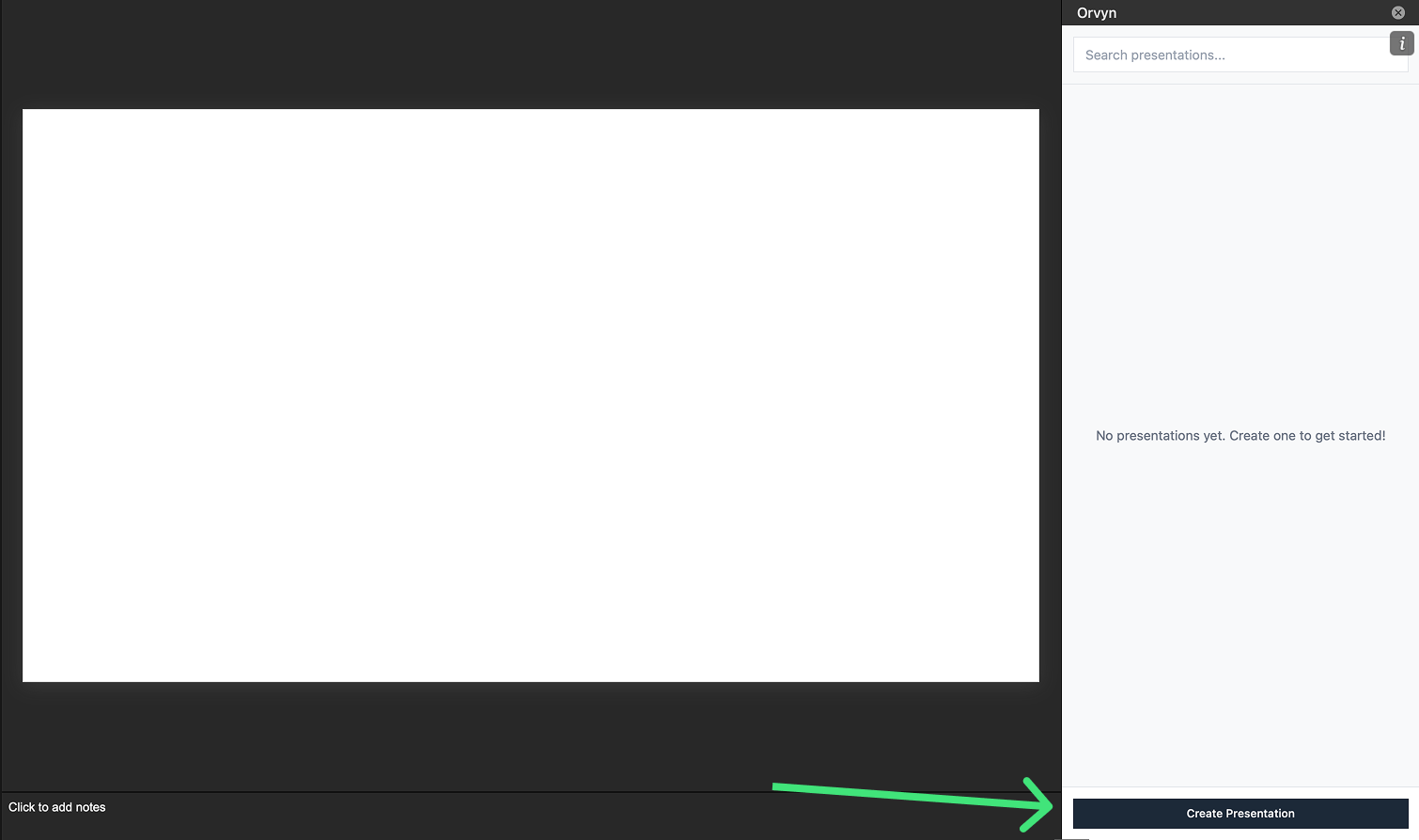
## Create Your Presentation and First Version
1. Click the **Create Presentation** button at the bottom of the Orvyn sidebar
2. Set the **Presentation Name** (e.g., "Q4 Financial Report")
3. Set the **Version Number** (e.g., "1")
4. Enter a **Version Description** (e.g., "Draft 1", "Client Review")
5. Click **Create**
Both your presentation and first version will be created together.
 ## Understanding Presentations and Versions
Think of presentations as your client files and versions as saved drafts:
* **Presentations** keep all versions of a deck organized in one place
* **Versions** let you make changes without losing your previous work
To learn more about working with presentations and versions, see [Understanding Versions](/versioning/understanding-versions).
## Understanding Presentations and Versions
Think of presentations as your client files and versions as saved drafts:
* **Presentations** keep all versions of a deck organized in one place
* **Versions** let you make changes without losing your previous work
To learn more about working with presentations and versions, see [Understanding Versions](/versioning/understanding-versions).